
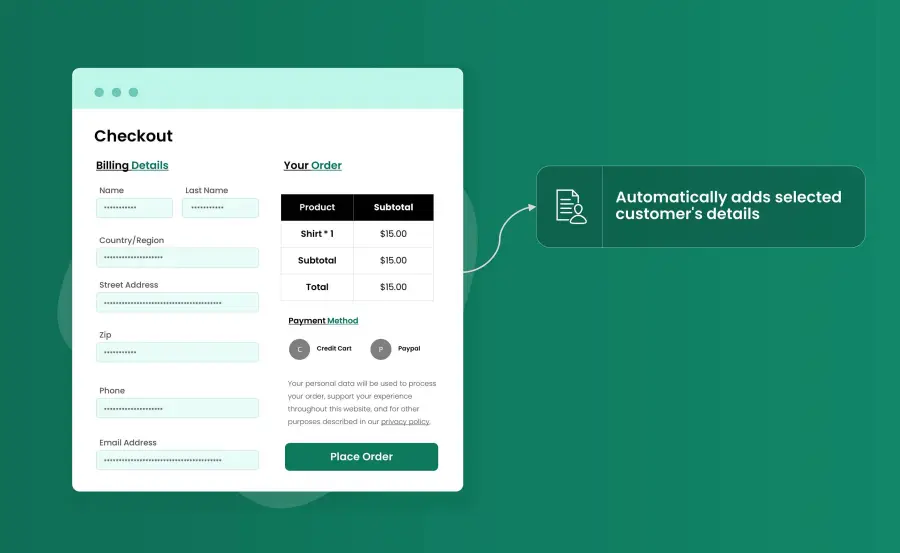
When creating an online store, many elements demand your attention, including product listings, checkout pages, and shipping setup. One often overlooked element is the login page. A clean and functional login page directly affects the customer experience and your ability to manage the store efficiently.
The WooCommerce Login & Shop as Customer plugin is a valuable tool for store admins. It allows you to log in as any customer, making it easier to test functionality, troubleshoot issues, and place orders on behalf of customers. The WooCommerce Login as Customer plugin also keeps a record of login activity for future reference, providing additional transparency and accountability.
Methods to Apply Login & Shop as a Customer in WooCommerce
There are two main ways to implement this functionality:
- Using the WooCommerce Login & Shop as Customer plugin by FMEAddons
- Programmatically applying Login & Shop as Customer in WooCommerce
Method 1: WooCommerce Login & Shop as Customer Plugin by FMEAddons
The plugin allows store admins to log in as a customer directly from the frontend. It is particularly useful for troubleshooting, testing checkout processes, and placing orders on behalf of customers.
Installation
- Download the plugin .zip file from your WooCommerce account.
In the WordPress Admin Panel, go to Plugins → Add New → Upload Plugin. - Upload the .zip file and click Install Now.
- Activate the plugin.
Setup and Configuration
Once activated, a new menu item, Login as Customer, will appear. Click it to access the plugin’s configuration.
General Settings
In the General Settings tab, you can configure:
- Enable login as customer
- Enable login history record
- Customize the switch back button text
After configuring the settings, log in as an admin and visit the frontend. A new menu item, Switch to Customer, will appear in the admin header bar under the profile picture menu. Clicking it opens a popup where you can log in as any customer.
Admin Login History
The plugin provides an option to enable or disable admin login history. This record displays:
- Which admin logged in as a customer
Timestamp of each session - Detailed records in a separate grid for easy tracking
This feature helps store owners monitor admin activity and maintain accountability.
Method 2: Programmatically Apply Login & Shop as Customer
For developers who prefer a code-based solution, WooCommerce supports programmatic implementation. This method allows you to add a switch option directly in the header.
Here is an example code snippet:
add_action( ‘wp_head’, array( $this, ‘ka_custom_header_bar’ ) );
/**
* Display option in header for switching to customer account
*/
public function ka_custom_header_bar() {
if ( ! empty( WC()->session->get( ‘customer_session_set’ ) ) ) {
?>
<form method=”POST”>
<div class=”header_bar”>
<input type=”submit” name=”submit_button”
value=”<?php echo esc_attr( get_option( ‘ka_button_field’ ) ); ?>”
class=”header-switch-btn”>
</div>
</form>
<?php
}
}
This approach requires technical knowledge of WooCommerce hooks, PHP, and session handling. It is best suited for developers who are comfortable working with custom code.
Benefits of Using Login & Shop as Customer
Using this feature provides several advantages for store owners:
- Quickly troubleshoot customer issues
- Test checkout and account functionality
- Place orders on behalf of customers
- Maintain a detailed admin login history
While both plugin and programmatic methods work, the WooCommerce Login & Shop as Customer plugin by FMEAddons is the simplest and most efficient solution, especially for store owners who prefer to avoid coding.
Wrapping Up
Implementing Login & Shop as Customer in WooCommerce improves store management and ensures a better customer experience. By using the plugin, admins can test and place orders efficiently while maintaining accountability through login history.
