
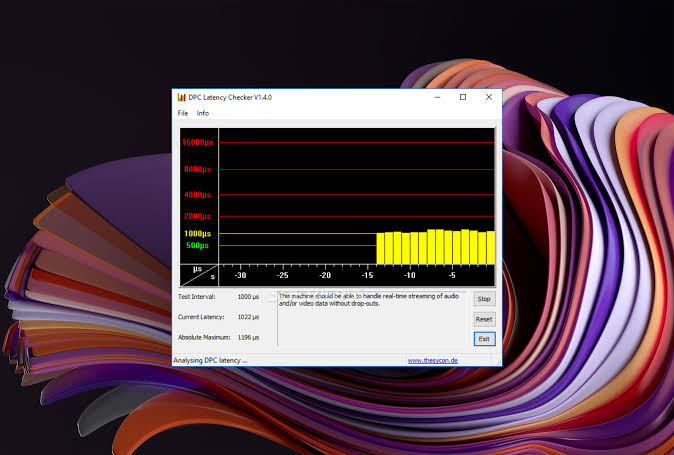
Computer performance depends on more than processor speed, RAM, or storage. Sometimes a system with good hardware can still experience audio crackling, brief freezes, stuttering, or delayed responses. One possible reason is high DPC latency. DPC Latency Checker can be used as a starting point for learning about latency and investigating potential Windows performance problems.
What Is DPC Latency?
DPC Latency Checker is a resource focused on Windows latency, performance, and related troubleshooting topics. DPC stands for Deferred Procedure Call, a Windows mechanism that allows certain tasks to be handled efficiently by the operating system.
When hardware or drivers take too long to complete certain operations, other processes may have to wait. In some situations, these delays can contribute to noticeable performance problems.
Why DPC Latency Matters
Latency becomes particularly important when a computer needs to process information in real time. Audio production is a common example. When recording or playing audio, the system needs to handle data consistently. Delays can potentially result in clicks, pops, crackling, or audio dropouts.
Other activities, including gaming, streaming, and video processing, can also be sensitive to system interruptions. However, latency is only one possible cause of these problems, so it should be considered alongside other performance factors.
Common Causes of High Latency
Device drivers are an important area to investigate when troubleshooting DPC latency. Drivers allow Windows to communicate with hardware components, and an outdated, incompatible, or malfunctioning driver can sometimes create performance issues.
Network adapters, graphics devices, sound cards, storage controllers, and other hardware components all rely on drivers. If a problem starts after installing or updating a driver, that recent change may be worth investigating.
Background software can also affect system performance. Security applications, hardware utilities, system-monitoring tools, and other programs may consume resources or interact with hardware drivers.
DPC Latency and Audio Performance
Musicians and audio professionals often pay close attention to DPC latency because audio applications require reliable real-time processing.
If a computer cannot process audio data quickly enough, users may notice interruptions during recording or playback. These issues can be especially frustrating when working with a digital audio workstation or recording through an external audio interface.
Latency testing can help users determine whether system delays could be contributing to these problems. If unusual latency is detected, drivers and background applications can then be investigated.
Checking Drivers and Hardware
When troubleshooting latency, checking device drivers is a useful first step. Users should make sure important drivers are compatible with their version of Windows and investigate any devices associated with unusual system behavior.
It can also help to consider recent hardware changes. If a problem appeared immediately after installing a new device, that hardware or its driver may deserve closer attention.
Users should make changes carefully and test the system after each adjustment. This makes it easier to identify which change affected performance.
Improving Windows Performance
There are several general steps users can take when investigating performance problems. Keeping Windows and important drivers updated can help maintain compatibility and stability.
Closing unnecessary background applications may also reduce system activity. Users can check which programs are running and determine whether any unnecessary utilities can be disabled.
If a particular driver appears to be causing problems, updating, reinstalling, or troubleshooting that driver may help. Advanced configuration changes should be approached carefully because incorrect settings can sometimes create additional issues.
DPC Latency and Gaming
Gamers may encounter stuttering, inconsistent responsiveness, or other performance issues for many reasons. Graphics settings, GPU drivers, CPU usage, temperatures, storage performance, and network conditions can all play a role.
DPC latency can be another factor worth investigating, particularly when problems occur unexpectedly or are difficult to explain.
However, users should not automatically assume that latency is responsible for every gaming problem. A complete troubleshooting process should consider the entire system rather than focusing on one measurement.
Why Audio Users Should Pay Attention
For people working with music production, podcasting, voice recording, or other real-time audio applications, system stability is especially important.
A computer needs to process audio streams consistently. When interruptions occur, recordings can contain unwanted noise or gaps. Checking system latency can therefore be one part of diagnosing an unreliable audio setup.
Users should also examine their audio drivers, interface settings, buffer configuration, and background processes when troubleshooting recording problems.
A Practical Troubleshooting Approach
The best way to investigate latency is to work systematically. First, identify exactly when the problem occurs. Determine whether it happens during gaming, audio recording, streaming, or general computer use.
Next, consider any recent changes to the system. New drivers, software, hardware, or Windows updates may provide useful clues.
After that, examine latency and other performance measurements. If a potential problem is identified, make one adjustment at a time and test the computer again.
This approach can prevent unnecessary changes and make it easier to identify the actual source of the issue.
Understanding the Limitations
DPC latency should not be treated as the only measurement of computer performance. A system can experience stuttering or audio problems for reasons unrelated to DPC activity.
Hardware limitations, overheating, insufficient memory, storage issues, application settings, network problems, and software conflicts can all cause performance difficulties.
For that reason, latency checking works best as part of a broader diagnostic process.
Conclusion
DPC latency can be an important consideration when troubleshooting Windows performance, particularly for users working with real-time audio, gaming, streaming, and other demanding applications.
DPC Latency Checker provides information and resources that can help users understand latency-related issues and explore possible troubleshooting methods. By examining drivers, background applications, hardware, and overall system behavior, users can develop a clearer picture of what may be affecting their computer.
A systematic approach is usually the most effective. Rather than immediately replacing hardware or making major system changes, users can investigate potential causes step by step and make informed adjustments based on their findings.
